43 — 模型切片着色器
简介
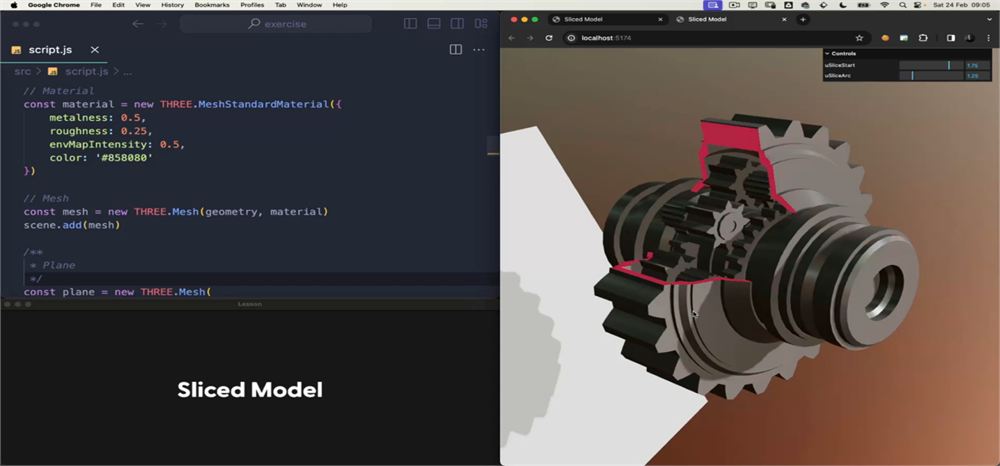
另一个经常被问到的问题是,如何像我为 Citrix & Redbull 网站(SSL 证书已失效,需要向下滚动一次才能看到切片效果)那样对模型进行切片:

这个效果其实相当简单,涉及到的概念我们之前都学过,比如如何增强内置材质、如何不绘制片元以及一些三角函数:

准备
初始项目已经包含以下内容:
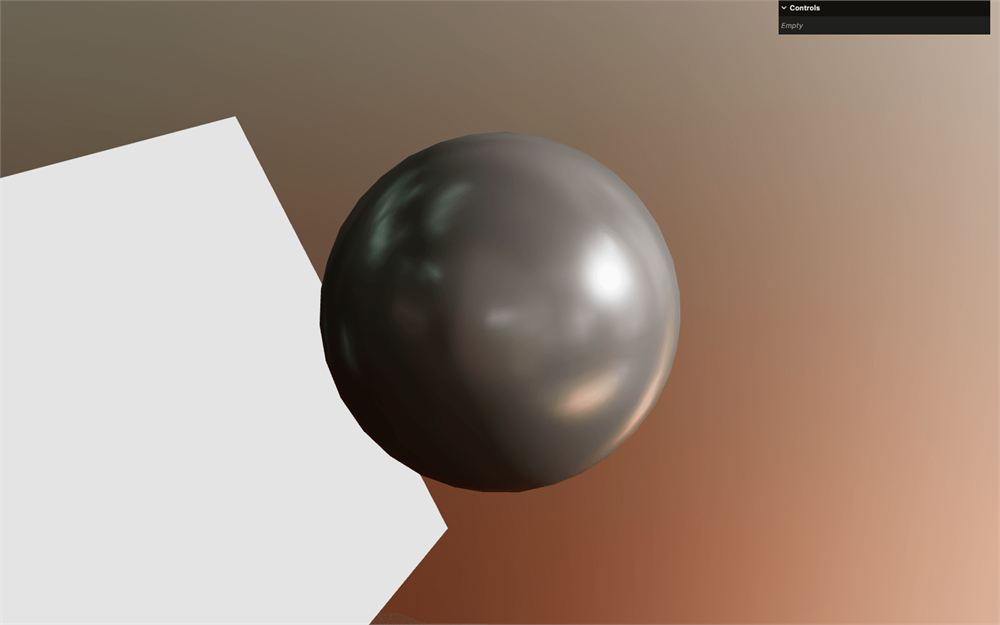
- 一个带有 IcosahedronGeometry 的 MeshStandardMaterial
- 一个用于测试阴影的平面
- 一个 HDR 环境贴图,用于背景并照亮场景
- 一个 DirectionalLight,用于进一步照亮球体并在平面上投射阴影
- 用于处理 GLSL 文件的
vite-plugin-glsl依赖 - 一个
GLTFLoader实例,并关联了一个DracoLoader实例 - 在
static/文件夹中的齿轮模型gears.glb OrbitControls用于围绕旋转- 用于增强内置材质的
three-custom-shader-material依赖
模型
这节课本可以从已经实现好的模型开始,但这是一个很好的练习机会。
齿轮模型是在 Blender 中创建的,你可以通过 Resources 按钮下载该文件:
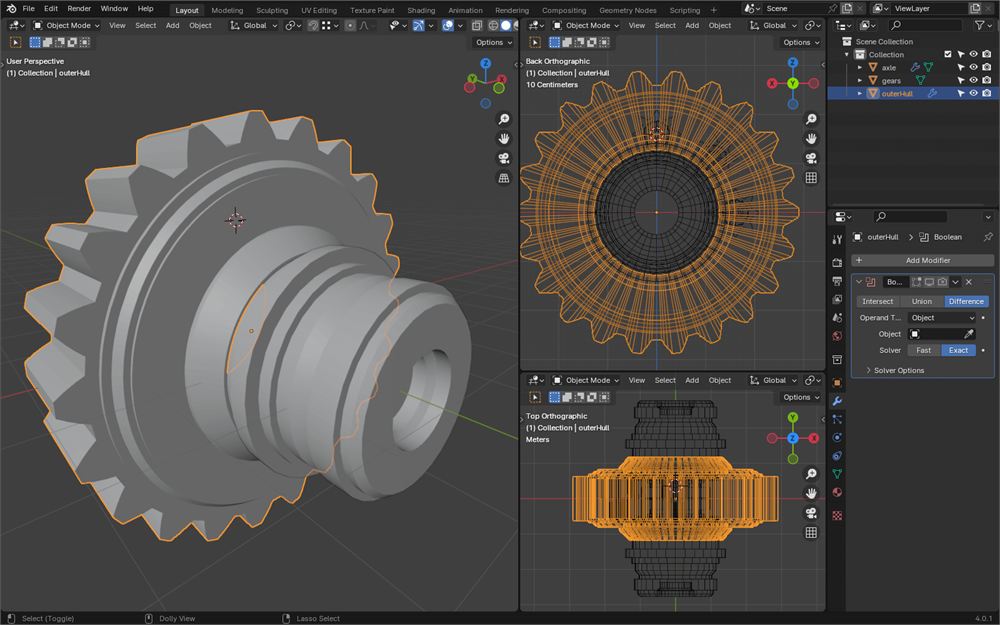
如果打开该文件,你会看到它由 3 个部分组成:axle、outerHull 和 gears。
切片效果只需应用到 outerHull 上,从而露出内部的齿轮。
由于球体只是实际模型的占位符,我们移除 IcosahedronGeometry 和 Mesh,但保留 material:
/**
 * Sliced model
 */
// Material
const material = new THREE.MeshStandardMaterial({
    metalness: 0.5,
    roughness: 0.25,
    envMapIntensity: 0.5,
    color: '#858080'
})
加载
模型位于 static/gears.glb。我们已经有一个 GLTFLoader 实例,并关联了一个 DRACOLoader 实例。
在 GLTFLoader 实例上使用 load() 方法,把路径设置为 './gears.glb',并在回调函数中添加一个 gltf 参数:
// Model
gltfLoader.load('./gears.glb', (gltf) =>
{
})
把 gltf.scene 添加到你的 scene:
// Model
gltfLoader.load('./gears.glb', (gltf) =>
{
    scene.add(gltf.scene)
})

旋转
我们要让模型持续旋转,以便从不同角度和光照下欣赏它。
由于我们想在每一帧中旋转 gltf.scene,所以需要在 tick 函数中操作,但在回调函数之外无法访问 gltf.scene。
这是一个典型的作用域问题。
为了解决它,在 load() 之前用一个 let 创建一个 model 变量,并赋值为 null:
let model = null
gltfLoader.load('./gears.glb', (gltf) =>
{
    // ...
})
在回调中把 gltf.scene 赋值给 model:
let model = null
gltfLoader.load('./gears.glb', (gltf) =>
{
    model = gltf.scene
    scene.add(model)
})
现在我们在任何地方都可以访问 model。
在 tick 函数中,把 elapsedTime 乘以 0.1 赋值给 model.rotation.y:
const tick = () =>
{
    const elapsedTime = clock.getElapsedTime()

    // Update model
    model.rotation.y = elapsedTime * 0.1

    // ...
}
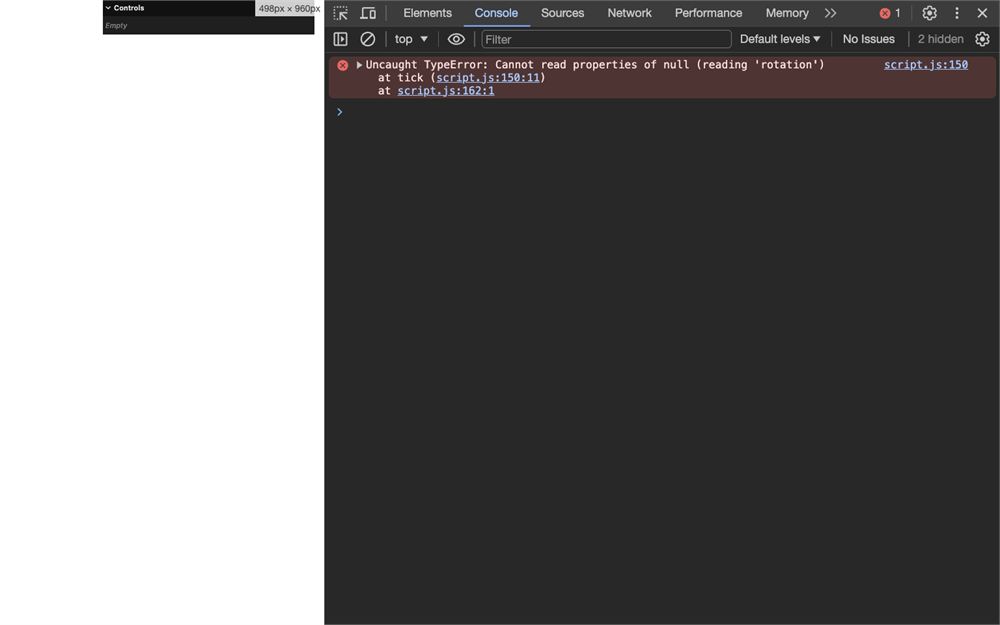
我们会遇到一个错误,因为加载模型需要时间,model 变量在这几帧内会是 null。
把 model 的旋转包在一个 if 语句中,这样在它为 null 时就不更新:
const tick = () =>
{
    const elapsedTime = clock.getElapsedTime()

    // Update model
    if(model)
        model.rotation.y = elapsedTime * 0.1

    // ...
}
材质
模型目前应用的是白色的 MeshStandardMaterial,因为这是 Three.js 在加载没有材质的模型时应用的默认材质。
我们自己的 MeshStandardMaterial 还在 material 变量中,我们想把它应用到模型上。
为了确保它应用到模型的每个 Mesh 上,我们要遍历它。
在回调函数中,用 model 上的 traverse() 方法遍历模型:
gltfLoader.load('./gears.glb', (gltf) =>
{
    model = gltf.scene

    model.traverse((child) =>
    {

    })

    scene.add(model)
})
该函数会在模型的每个子项和孙项上被调用。
在该函数中,用 isMesh 属性判断 child 是否是 Mesh:
gltfLoader.load('./gears.glb', (gltf) =>
{
    model = gltf.scene

    model.traverse((child) =>
    {
        if(child.isMesh)
        {

        }
    })

    scene.add(model)
})
在那个 if(child.isMesh) 中,把 material 赋值给 child.material 属性:
gltfLoader.load('./gears.glb', (gltf) =>
{
    model = gltf.scene

    model.traverse((child) =>
    {
        if(child.isMesh)
        {
            child.material = material
        }
    })

    scene.add(model)
})

阴影
我们要在模型每个 Mesh 上同时开启投射和接收阴影。
仍在 if(child.isMesh) 中,把 castShadow 和 receiveShadow 设置为 true:
gltfLoader.load('./gears.glb', (gltf) =>
{
    model = gltf.scene

    model.traverse((child) =>
    {
        if(child.isMesh)
        {
            child.material = material
            child.castShadow = true
            child.receiveShadow = true
        }
    })

    scene.add(model)
})

自定义材质
模型已经准备好了,接下来把我们的材质应用上去。
我们现在想把 MeshStandardMaterial 替换为支持切片效果的增强版本。为了增强 MeshStandardMaterial,我们将使用依赖中已提供的 Custom Shader Material。
实例化
从 'three-custom-shader-material/vanilla' 导入 CustomShaderMaterial:
import CustomShaderMaterial from 'three-custom-shader-material/vanilla'由于我们只想对名为 outerHull 的 Mesh 应用切片,所以模型的其它元素继续使用默认的 material。
复制 material 并命名为 slicedMaterial:
const slicedMaterial = new THREE.MeshStandardMaterial({
    metalness: 0.5,
    roughness: 0.25,
    envMapIntensity: 0.5,
    color: '#858080'
})
把 THREE.MeshStandardMaterial 替换为 CustomShaderMaterial(先不要保存):
const slicedMaterial = new CustomShaderMaterial({
    metalness: 0.5,
    roughness: 0.25,
    envMapIntensity: 0.5,
    color: '#858080'
})
把 baseMaterial 属性设置为 THREE.MeshStandardMaterial,让材质继承自 MeshStandardMaterial。然后用注释分隔属性(此时可以保存):
const slicedMaterial = new CustomShaderMaterial({
    // CSM
    baseMaterial: THREE.MeshStandardMaterial,

    // MeshStandardMaterial
    metalness: 0.5,
    roughness: 0.25,
    envMapIntensity: 0.5,
    color: '#858080'
})
我们会收到一个关于 Custom Shader Material 处理到意外代码片段的警告:
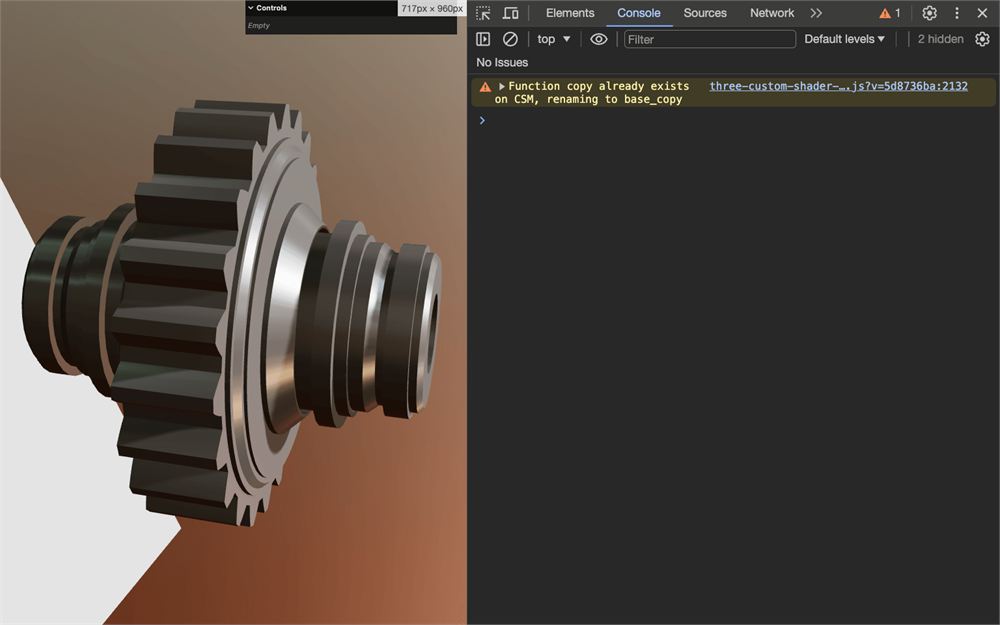
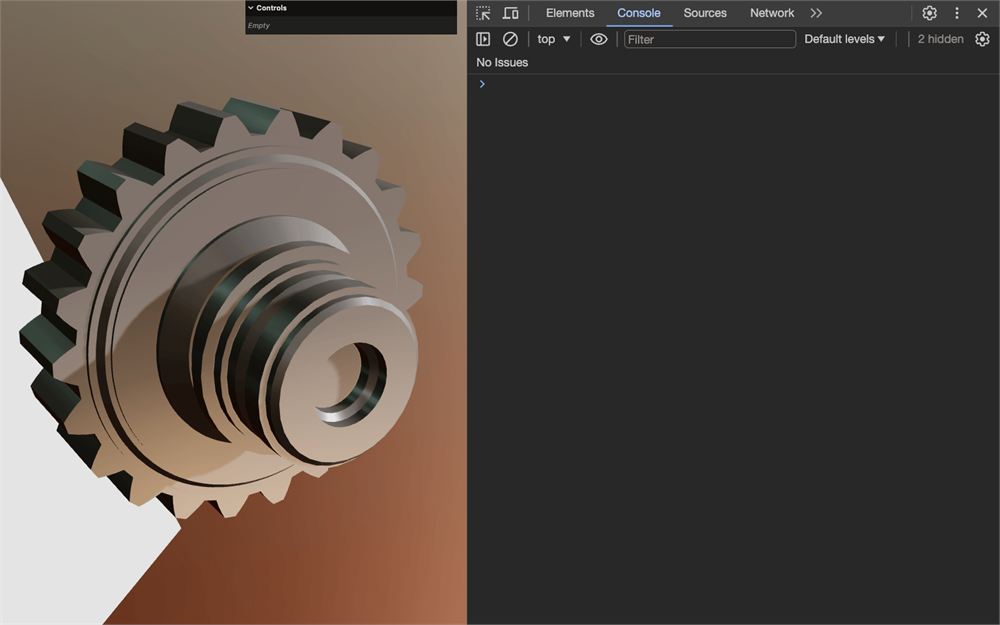
我们可以通过把 silent 属性设为 true 来忽略这些警告:
const slicedMaterial = new CustomShaderMaterial({
    // CSM
    baseMaterial: THREE.MeshStandardMaterial,
    silent: true,

    // ...
})
着色器
我们需要一个顶点着色器和一个片元着色器。
在 src/ 中创建 shaders/ 文件夹。在该 src/shaders/ 文件夹中,创建 sliced/ 文件夹。
在该 src/shaders/sliced/ 文件夹中,创建一个带有空 void main() 函数的 vertex.glsl:
void main()
{

}
在该 src/shaders/sliced/ 文件夹中,创建一个带有 void main() 函数的 fragment.glsl。接着,为了测试着色器是否工作,把 csm_FragColor 设置为 vec4(1.0, 0.0, 0.0, 1.0):
void main()
{
    csm_FragColor = vec4(1.0, 0.0, 0.0, 1.0);
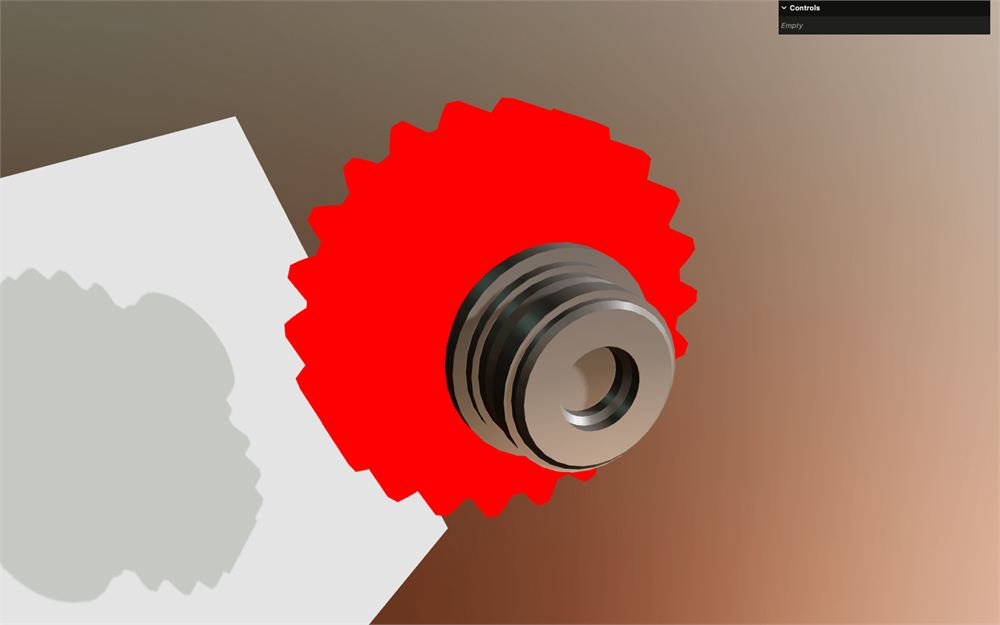
}实现后,csm_FragColor 应该会覆盖 gl_FragColor,让 Mesh 看起来是红色的。
在 script.js 中,把两个着色器分别导入为 slicedVertexShader 和 slicedFragmentShader:
import slicedVertexShader from './shaders/sliced/vertex.glsl'
import slicedFragmentShader from './shaders/sliced/fragment.glsl'
使用 vertexShader 和 fragmentShader 属性把它们添加到 CustomShaderMaterial 实例中:
const slicedMaterial = new CustomShaderMaterial({
    // CSM
    baseMaterial: THREE.MeshStandardMaterial,
    vertexShader: slicedVertexShader,
    fragmentShader: slicedFragmentShader,
    silent: true,

    // ...
})
应用
我们的材质应该准备好了,希望我们没有犯任何错误。
现在把 slicedMaterial 添加到模型,但只应用到名为 outerHull 的元素上。
为此,在 if(child.isMesh) 中再用一个 if 判断 child.name 是否为 'outerHull'。如果是,应用 slicedMaterial,否则应用 material:
gltfLoader.load('./gears.glb', (gltf) =>
{
    // ...

    model.traverse((child) =>
    {
        if(child.isMesh)
        {
            if(child.name === 'outerHull')
            {
                child.material = slicedMaterial
            }
            else
            {
                child.material = material
            }

            child.castShadow = true
            child.receiveShadow = true
        }
    })

    // ...
})
切片
我们现在已经把自定义材质应用到了 outerHull,是时候对它进行切片了。为此,我们将使用之前课程中学过的 discard;。
片元位置
discard; 只能在片元着色器中调用,但我们要根据位置来 discard;,所以需要把位置从顶点着色器传到片元着色器。
在 vertex.glsl 中,创建一个 vec3 vPosition varying,并赋值为 csm_Position.xyz:
varying vec3 vPosition;

void main()
{
    vPosition = csm_Position.xyz;
}
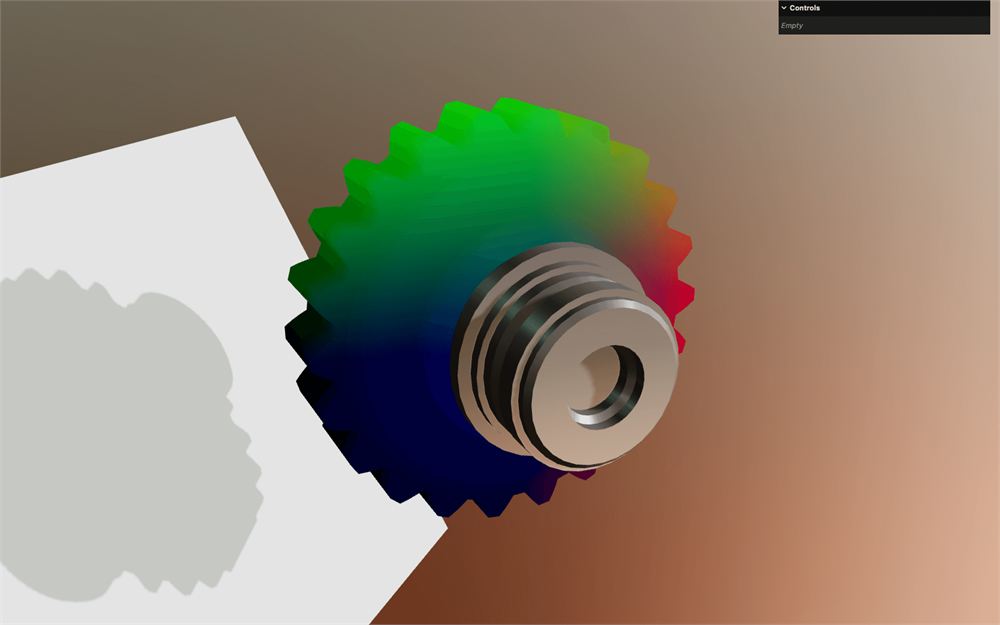
在 fragment.glsl 中获取 vPosition varying。出于好奇,把它赋值给 csm_FragColor 的前三个值:
varying vec3 vPosition;

void main()
{
    csm_FragColor = vec4(vPosition, 1.0);
}
径向切片
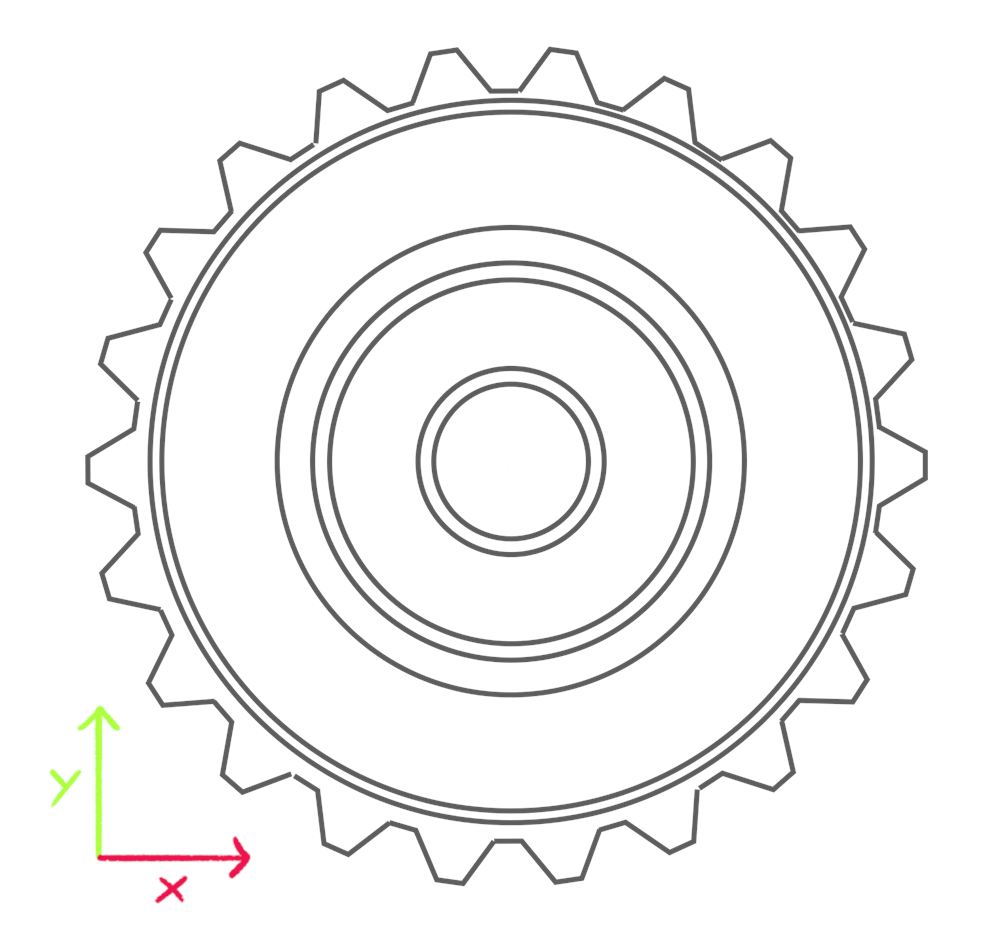
我们要根据径向坐标来切片。
这就像切掉蛋糕的一块。由于模型与 z 轴对齐,我们可以用一些三角函数专注于 x 和 y 轴:
我们将使用一个起始角度和一个幅度角度,我们称之为 “arc”(弧):
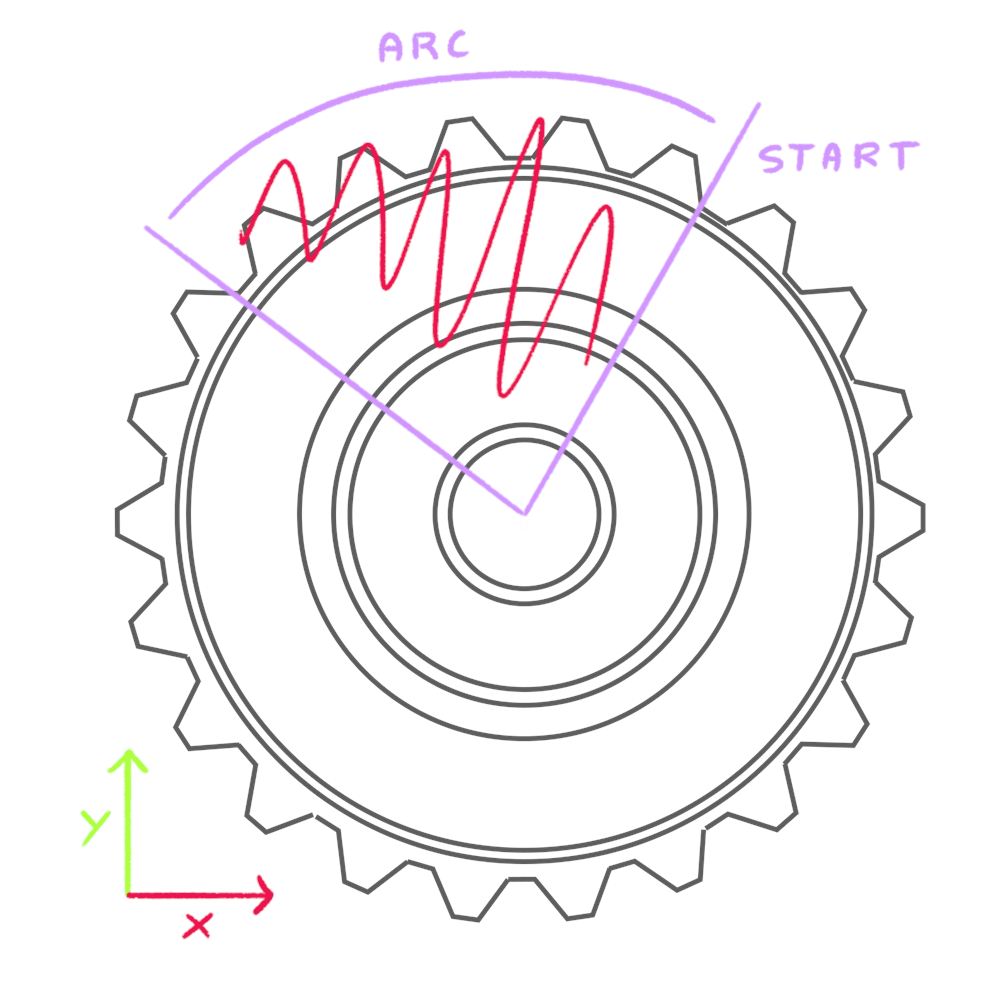
目前我们先把它们创建为名为 uSliceStart 和 uSliceArc 的变量,稍后再改用 uniform。
创建一个值为 1.0 的 float uSliceStart 和值为 1.5 的 float uSliceArc:
void main()
{
    float uSliceStart = 1.0;
    float uSliceArc = 1.5;

    // ...
}
现在我们有了表示片元应在何处被 discard; 的角度变量,还需要获取当前正在绘制的片元的角度。
如前所述,我们可以专注于 x 和 y 轴。在三角函数中,要根据二维坐标计算角度,可以使用 “反正切”,GLSL 中有一个函数叫 atan。
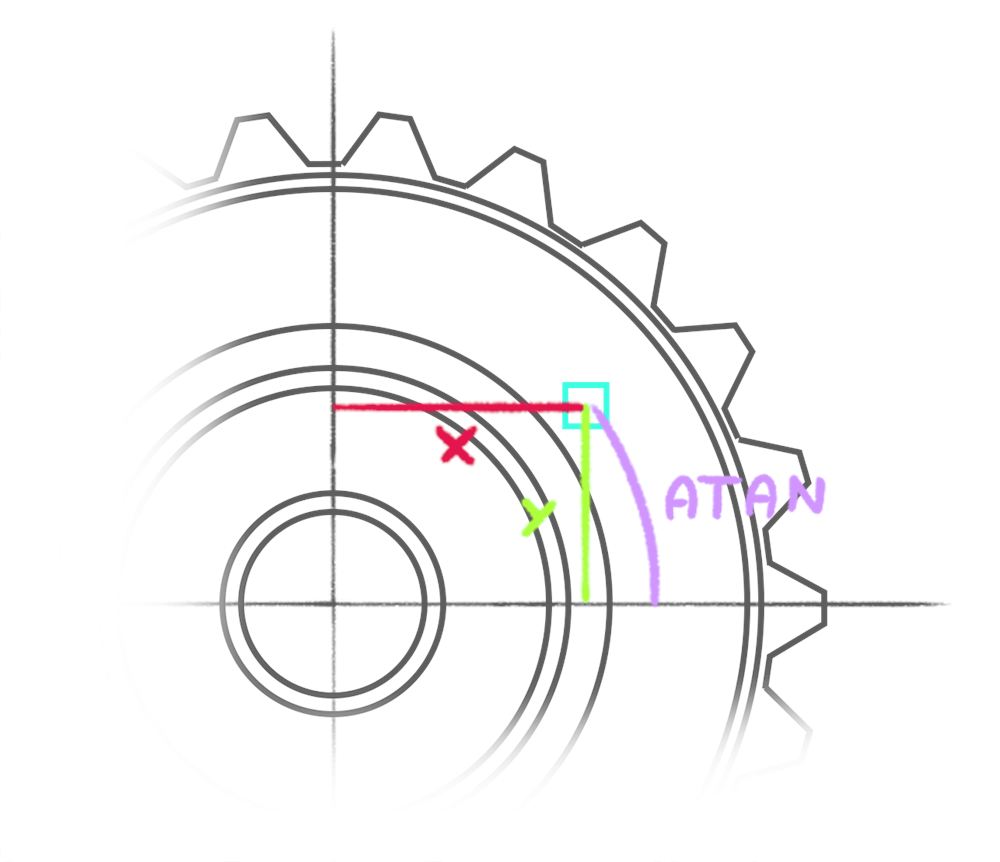
创建一个 float angle 变量,把 atan 的结果赋给它。然后按顺序把 vPosition.y 和 vPosition.x 传给该 atan(先 y 后 x)。
void main()
{
    // ...

    float angle = atan(vPosition.y, vPosition.x);

    // ...
}
把这个 angle 作为 vec3 赋值给 csm_FragColor 的前三个值,看看会得到什么:
void main()
{
    // ...

    float angle = atan(vPosition.y, vPosition.x);

    csm_FragColor = vec4(vec3(angle), 1.0);
}

这个值在上半部分似乎为正,在下半部分为负。
这与反正切的预期一致:上半部分的值范围是 0 到 PI,下半部分是 0 到 -PI:
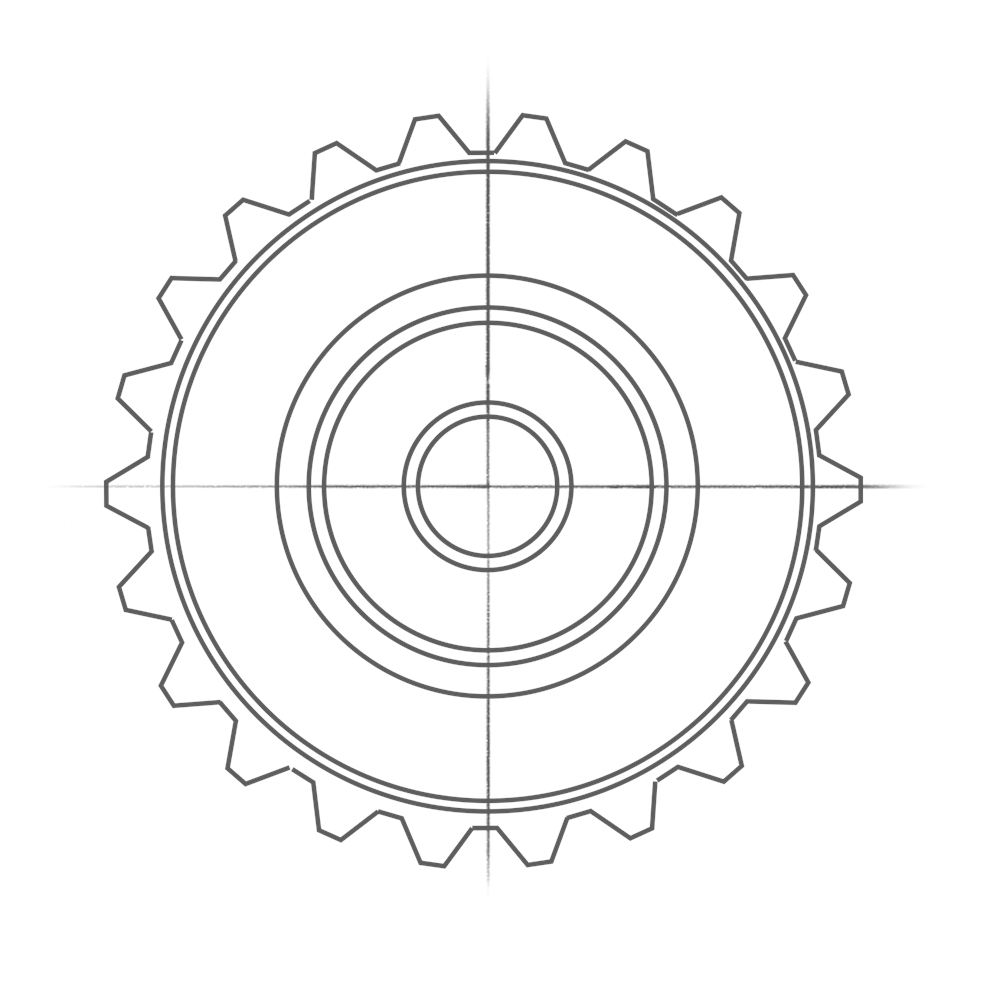
现在我们可以比较 uSliceStart、uSliceArc 和 angle。
如果 angle 大于 uSliceStart 且 angle 小于 uSliceStart + uSliceArc,说明 angle 在切片区域内,我们可以调用 discard;:
if(angle > uSliceStart && angle < uSliceStart + uSliceArc)
        discard;

这是一个开始。
Uniforms
好了,把 uSliceStart 和 uSliceArc 转换成 uniform,这样我们就能调整它们了。
如果你还记得之前的课程,我们会遇到一个阴影问题,需要提供自定义的 MeshDepthMaterial。稍后我们会处理它,但这说明我们需要把 uniform 提供给两个材质,所以我们只创建一次这些 uniform,并在两个材质上使用。
在 script.js 中、材质之前,创建一个 uniforms 对象,使用 Uniform 类把 uSliceStart 设置为 1.75、把 uSliceArc 设置为 1.25:
// Material
const uniforms = {
    uSliceStart: new THREE.Uniform(1.75),
    uSliceArc: new THREE.Uniform(1.25),
}

const material = new THREE.MeshStandardMaterial({
    // ...
})

const slicedMaterial = new CustomShaderMaterial({
    // ...
})
紧接着设置 uniforms 对象之后,创建对应的调节项:
const uniforms = {
    // ...
}

gui.add(uniforms.uSliceStart, 'value', - Math.PI, Math.PI, 0.001).name('uSliceStart')
gui.add(uniforms.uSliceArc, 'value', 0, Math.PI * 2, 0.001).name('uSliceArc')
uSliceStart 的范围是从 -PI 到 +PI,与反正切得到的角度一致。
uSliceArc 的范围是从 0 到 2 * PI,这样我们可以从不切到切掉整个蛋糕。
把 uniforms 对象传给 CustomShaderMaterial 的 uniforms 属性:
const slicedMaterial = new CustomShaderMaterial({
    // CSM
    baseMaterial: THREE.MeshStandardMaterial,
    vertexShader: slicedVertexShader,
    fragmentShader: slicedFragmentShader,
    uniforms: uniforms,
    silent: true,

    // ...
})
在 fragment.glsl 中,把 uSliceStart 和 uSliceArc uniform 获取为 float,并删除临时变量:
uniform float uSliceStart;
uniform float uSliceArc;

varying vec3 vPosition;

void main()
{
    float angle = atan(vPosition.y, vPosition.x);

    if(angle > uSliceStart && angle < uSliceStart + uSliceArc)
        discard;

    csm_FragColor = vec4(vec3(angle), 1.0);
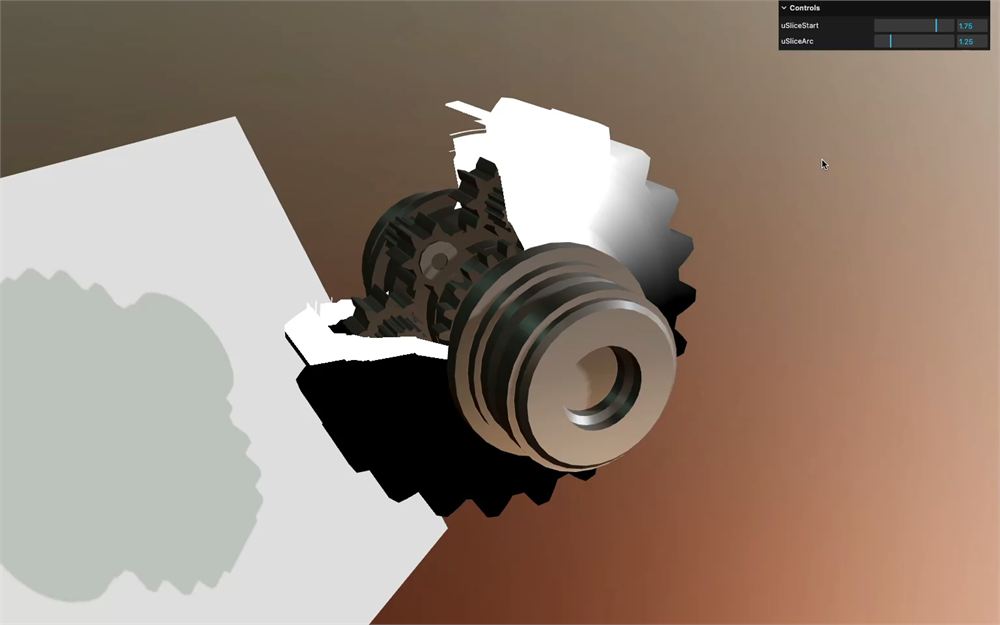
}
修复角度问题
切片效果已经生效。但不幸的是,在某些特定数值下切片会出错:
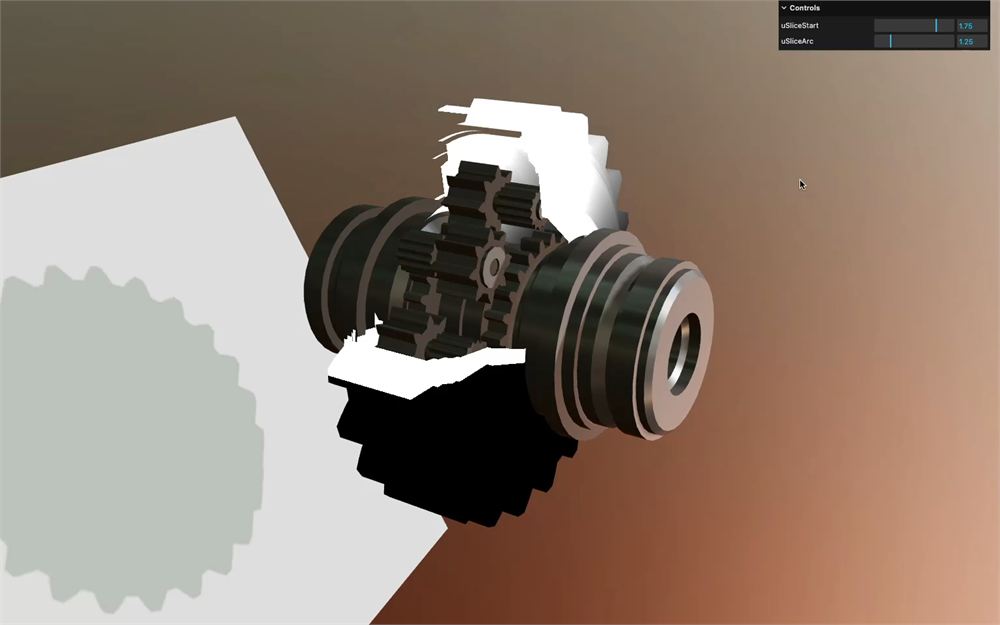
这是问题的一个例子。
如果我们把 uSliceStart 设置为 2.5,把 uSliceArc 设置为 2,意味着切片角度会从 2 到 4.5(因为 uSliceStart + uSliceArc):
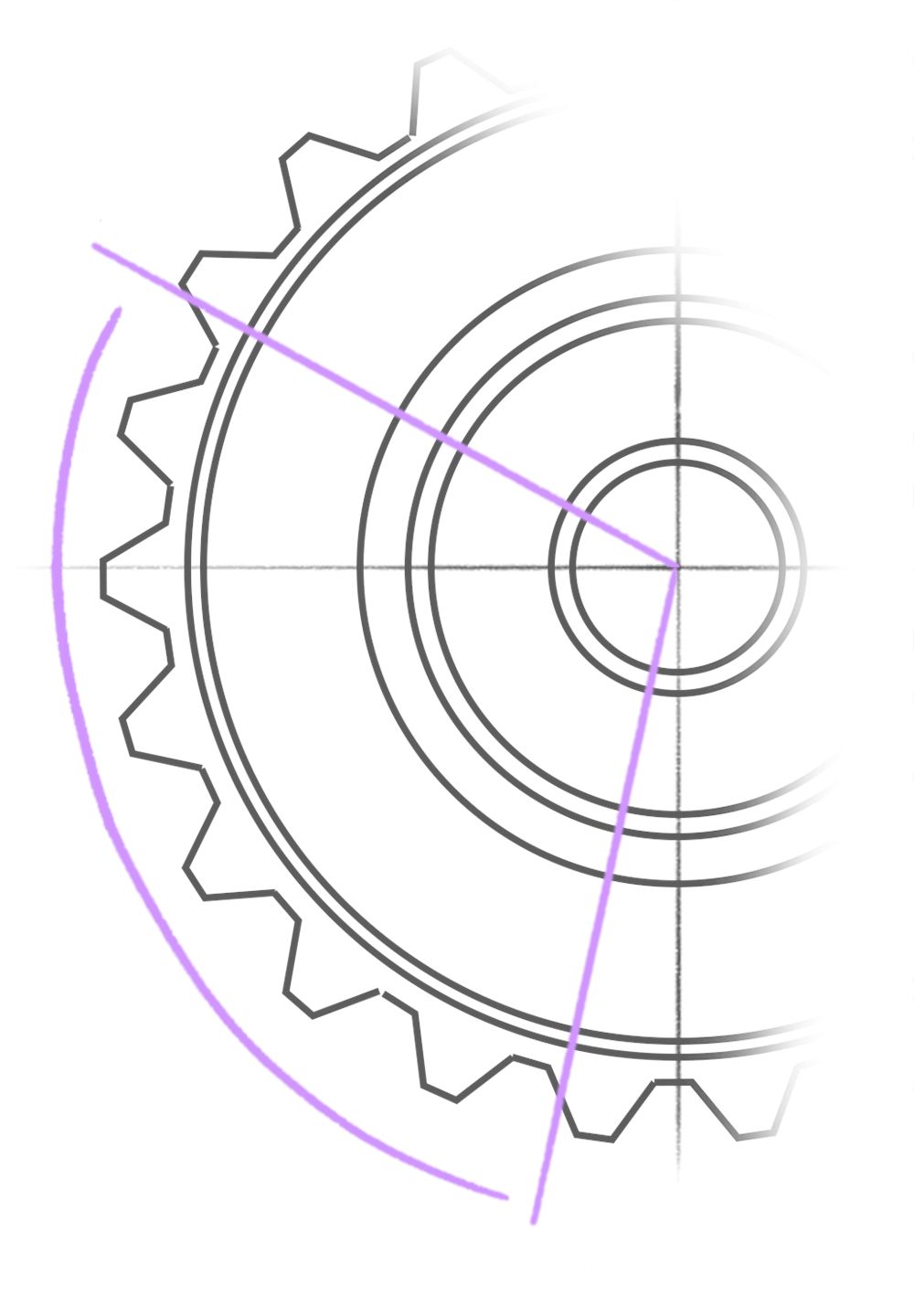
但如果我们取下面这个位置为 x = -1、y = -0.2 的片元,它的角度大约会是 -3:
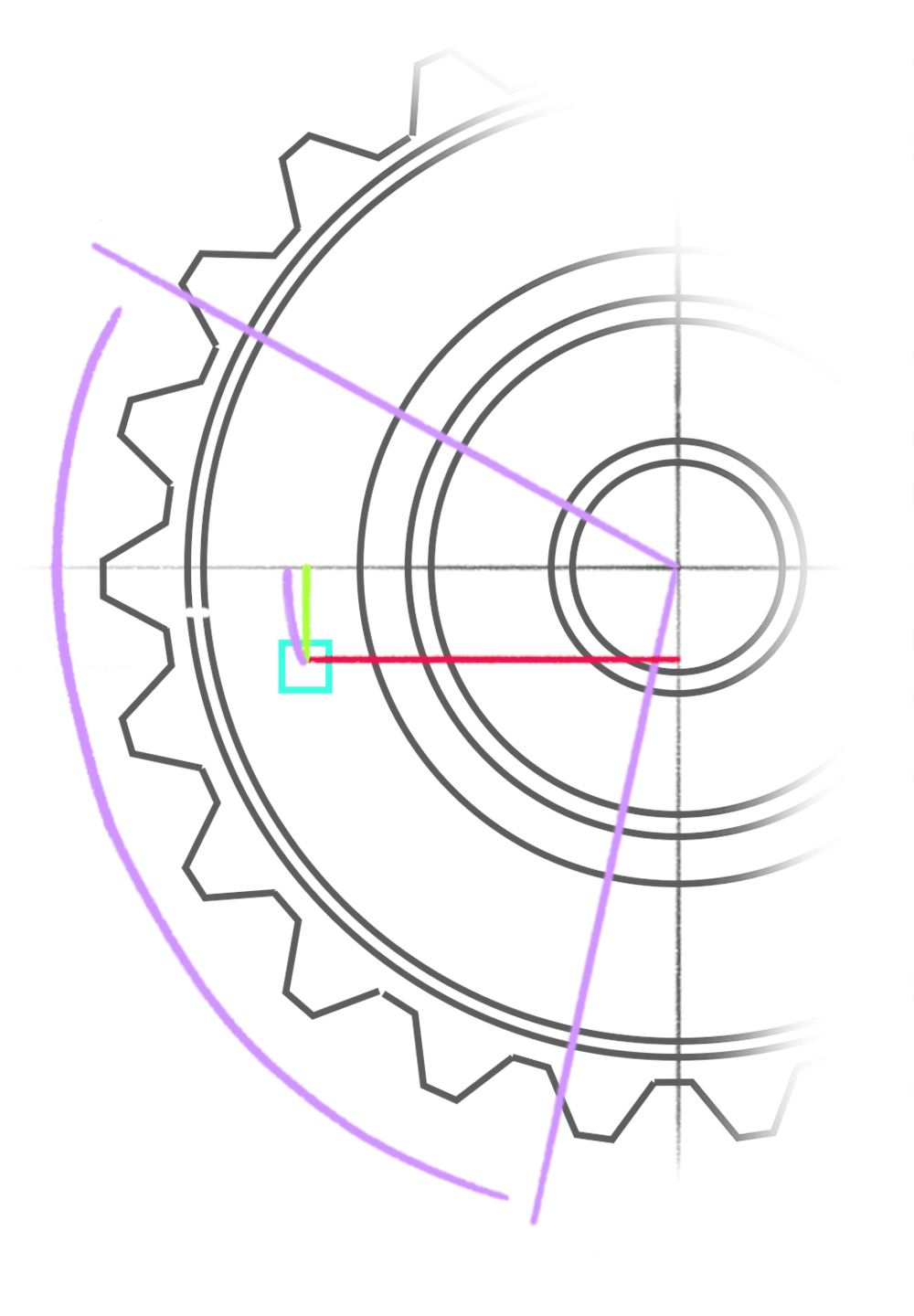
而由于 -3 不在 2.5 和 4.5 之间,if 语句为 false,该片元不会被 discard;。
处理这个问题有多种方式,但我喜欢用的做法是变换基础坐标。在我们的情况中,我们将旋转 angle,使其 0 点正好是切片开始的位置:
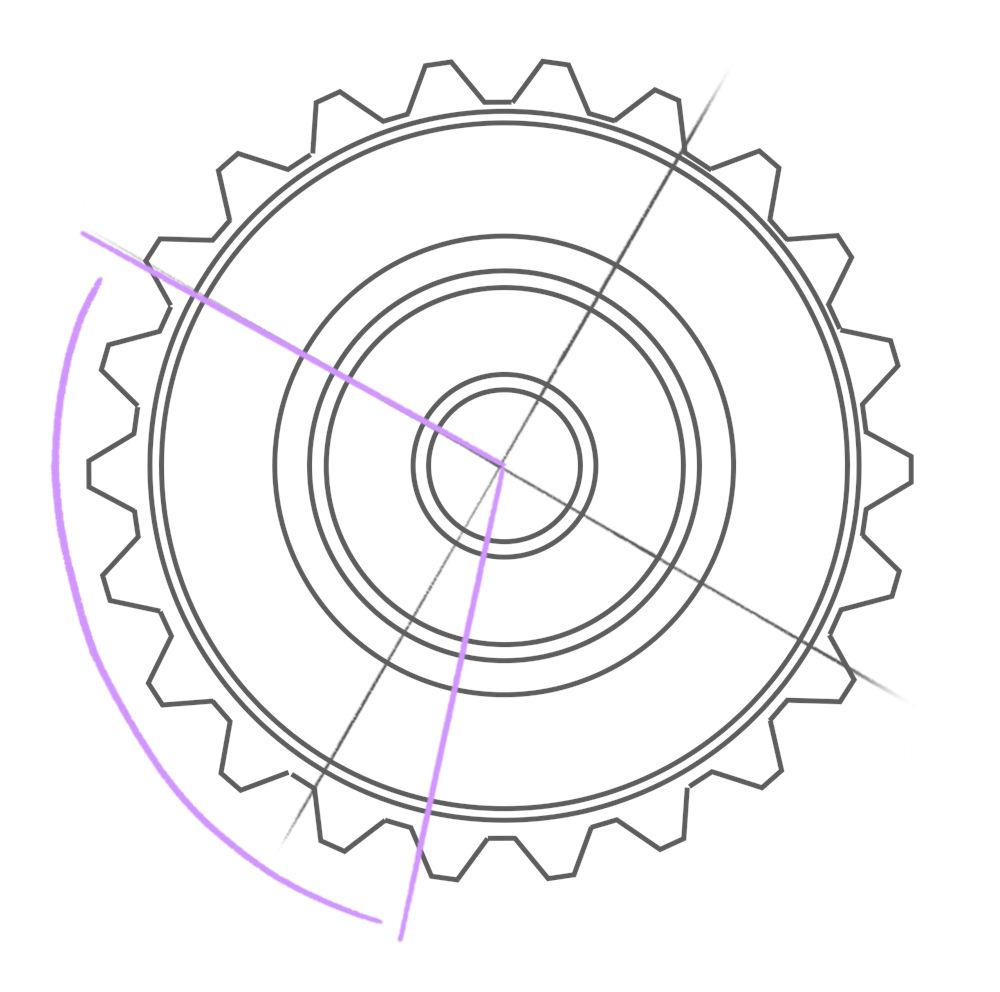
我们可以在 fragment.glsl 中,通过从 angle 中减去 uSliceStart 来实现:
void main()
{
    float angle = atan(vPosition.y, vPosition.x);
    angle -= uSliceStart;

    // ...
}
既然已经把 uSliceStart 应用到 angle 上,我们就可以把它从 if 语句中去掉:
void main()
{
    float angle = atan(vPosition.y, vPosition.x);
    angle -= uSliceStart;

    if(angle > 0.0 && angle < uSliceArc)
        discard;

    // ...
}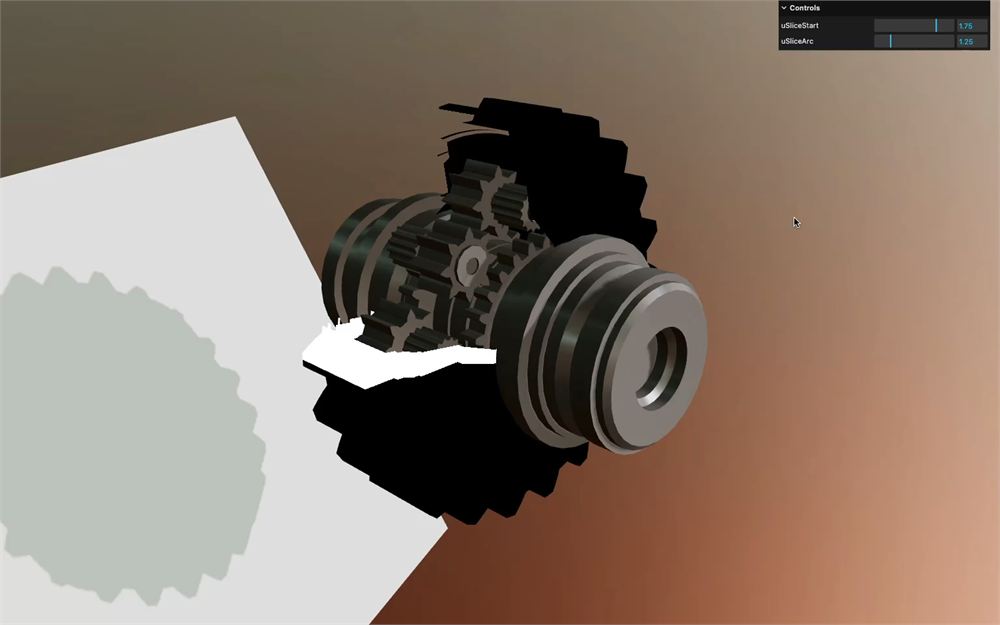
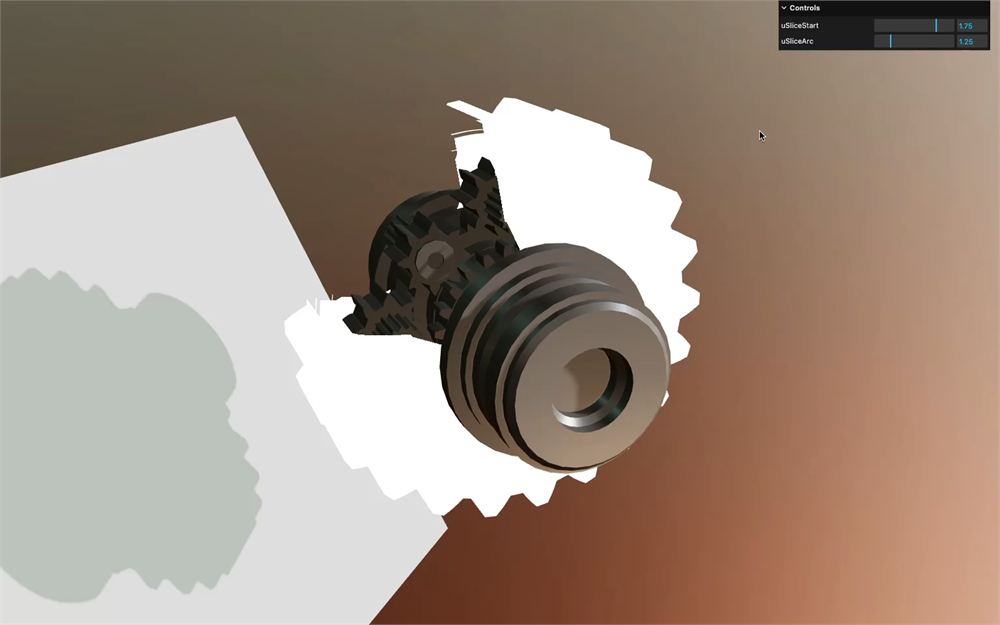
我们得到一样的结果,但接下来的技巧来了。我们可以对 angle 做 2 * PI 的取模。
到目前为止,我们用取模是为了让变量达到阈值后回到 0。但在 GLSL 中,取模也会让负值从 0 循环到我们选定的阈值。
例如把 -0.25 对阈值 1.0 取模会得到 0.75。这很怪,是 GLSL 特有的行为,但它正好能帮到我们——让反正切函数得到的负角度部分与正值连续地循环起来:
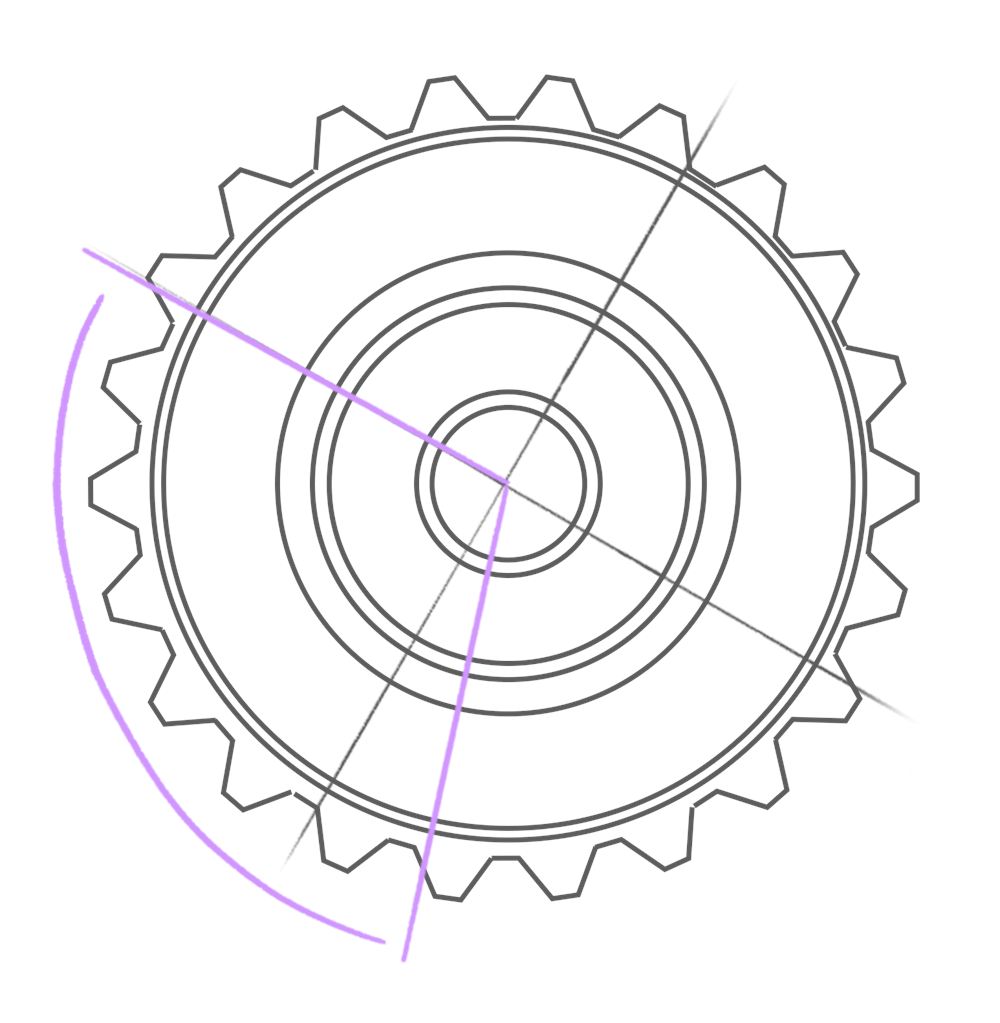
我们在 fragment shader 中需要一个 PI 的近似值。如果你还记得 Shader Patterns 课程,我们当时用下面的语法创建了一个 PI 变量:
#define PI 3.1415926535897932384626433832795define 比变量更省资源,但不能修改。按惯例把 define 写成大写,以便与其他变量区分。
当时这样做是因为我们用的是 RawShaderMaterial。但现在我们是在增强 Three.js 的内置着色器,Three.js 已经为我们创建好了那个 PI 变量。
你可以在 common chunk 中找到它,几乎所有内置材质都会用到它:common.glsl.js
这意味着我们可以在片元着色器中使用 PI,而无需自己创建它。
使用 mod 函数对 angle 应用 2.0 * PI 的取模:
void main()
{
    float angle = atan(vPosition.y, vPosition.x);
    angle -= uSliceStart;
    angle = mod(angle, PI * 2.0);

    // ...
}
这部分更像是我在把数值搞乱之后才会用到的技巧。如果你没理解也没关系。
另外要记住,对负数取模在不同环境下的行为可能不同。例如,JavaScript 中 -0.25 % 1 会输出 -0.25,而不是像 GLSL 那样的 0.75。
移除 csm_FragColor:
void main()
{
    float angle = atan(vPosition.y, vPosition.x);
    angle -= uSliceStart;
    angle = mod(angle, PI * 2.0);

    if(angle > 0.0 && angle < uSliceArc)
        discard;
}
填补缝隙
我们成功避免了为切片部分绘制片元,但切片内部看起来并不好。
理想情况下,我们希望有一个漂亮的表面,能像材质其余部分一样具有反射、着色、阴影等效果。但不幸的是,如果不在这里重建实际的几何体,这几乎是不可能的。
虽然在实时中构建几何体是可行的,但性能很差,尤其是对复杂几何体。对于一次性的切片来说没关系,但如果你想实时调整或动画化切片,就需要为每一帧重建几何体,从而大幅降低帧率。
所以我们改为有意识地绘制纯色来突出切片,就像我们在 Citrix & Redbull 网站 上做的那样:

我们的做法是:只有当它是几何体的背面时,才显示纯色,从而覆盖 MeshStandardMaterial 的默认着色。
首先,我们需要显示背面。
在 CustomShaderMaterial 实例上,把 side 属性设置为 THREE.DoubleSide:
const slicedMaterial = new CustomShaderMaterial({
    // ...
    side: THREE.DoubleSide
})

正如 Hologram 课程中所见,在 GLSL 中我们可以访问一个名为 gl_FrontFacing 的变量,它是一个布尔值:如果我们正在绘制的片元朝向摄像机(正面)则为 true,否则(背面)为 false。
在 fragment.glsl 中,用 if 语句通过在 gl_FrontFacing 前加 ! 来判断是否是背面。然后,把 csm_FragColor 设置为下面的 vec4:
void main()
{
    // ...

    if(!gl_FrontFacing)
        csm_FragColor = vec4(0.75, 0.15, 0.3, 1.0);
}
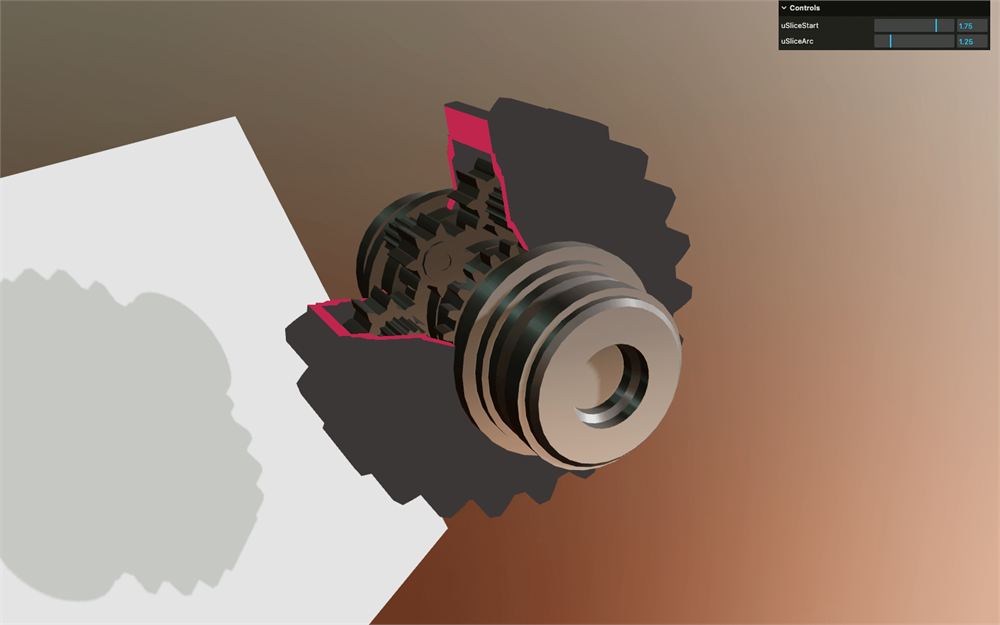
背面现在是红色的,说明生效了,但材质其余部分也是纯色。奇怪。
这是 Custom Shader Material 的一个限制。只要我们的自定义着色器中存在 csm_FragColor,最终着色器的 gl_FragColor 就会被 csm_FragColor 覆盖,而默认的 csm_FragColor 就是我们传给材质的 color,这就是它呈灰色的原因。
不幸的是,我们无法在 fragment.glsl 中解决这个问题,只能注入我们自己的着色器——这也正好是了解在使用 Custom Shader Material 时如何注入的绝佳机会。
首先,从 fragment.glsl 中移除那个 if 和 csm_FragColor:
void main()
{
    float angle = atan(vPosition.y, vPosition.x);
    angle -= uSliceStart;
    angle = mod(angle, PI * 2.0);

    if(angle > 0.0 && angle < uSliceArc)
        discard;
}

要把我们自己的着色器片段注入 CustomShaderMaterial 实例,我们需要使用 patchMap 属性。
但由于我们要对 slicedMaterial 以及即将到来的自定义深度材质都这样做,所以我们只创建一次 patchMap,并在两个材质上使用(就像 uniforms 那样)。
在材质之前,创建一个 patchMap 变量,并赋值为空对象:
const patchMap = {}

const material = new THREE.MeshStandardMaterial({
    // ...
})

const slicedMaterial = new CustomShaderMaterial({
    // ...
})
patchMap 的工作方式是:我们放在里面的属性名就是我们为补丁选择的名字。在着色器中使用该名字,就会注入我们作为值传入的补丁。
我们选择 csm_Slice 并给它赋值一个对象:
const patchMap = {
    csm_Slice:
    {

    }
}
一个补丁可以执行多个替换。替换的工作方式与我们在 Modified Material 课程中所做的一样。我们选择 Three.js 内置着色器中想要替换的一段代码,并用另一段代码替换它。
在我们的情况中,我们想替换 MeshStandardMaterial 中处理 gl_FragColor 的那部分,它看起来是这样的:#include <colorspace_fragment>。
你可以在 Three.js 代码中找到它:https://github.com/mrdoob/three.js/blob/dev/src/renderers/shaders/ShaderLib/meshphysical.glsl.js#L218
在 csm_Slice 中,属性对应我们想替换的那段代码,值对应替换它的那段代码。
这种结构使得可以替换多个部分。在我们的情况中,只有一部分需要替换,也就是 #include <colorspace_fragment>。
一开始,我们先把它替换成完全相同的内容:
const patchMap = {
    csm_Slice:
    {
        '#include <colorspace_fragment>': '#include <colorspace_fragment>'
    }
}
现在,我们可以在值中加入自己的代码。
在这里写代码会很傻,而且难以维护。幸运的是,我们可以使用反引号的模板字面量语法,从而支持换行:
const patchMap = {
    csm_Slice:
    {
        '#include <colorspace_fragment>':
        `
            #include <colorspace_fragment>
        `
    }
}在其中,#include <colorspace_fragment> 之后,我们可以使用之前用 gl_FrontFacing 写的相同代码,但这次我们直接更新 gl_FragColor:
const patchMap = {
    csm_Slice:
    {
        '#include <colorspace_fragment>':
        `
            #include <colorspace_fragment>

            if(!gl_FrontFacing)
                gl_FragColor = vec4(0.75, 0.15, 0.3, 1.0);
        `
    }
}
由于代码相当简单,我们就在 JavaScript 中用模板字面量保留它,但你也可以随意把它放到单独的 GLSL 文件中。
要为材质启用补丁,把 patchMap 添加到 CustomShaderMaterial 的 patchMap 属性:
const slicedMaterial = new CustomShaderMaterial({
    // CSM
    baseMaterial: THREE.MeshStandardMaterial,
    vertexShader: slicedVertexShader,
    fragmentShader: slicedFragmentShader,
    uniforms: uniforms,
    patchMap: patchMap,
    // ...
})
要激活它,就在着色器中的任意位置创建一个与你想激活的补丁同名的空 float 变量:
void main()
{
    // ...

    float csm_Slice;
}
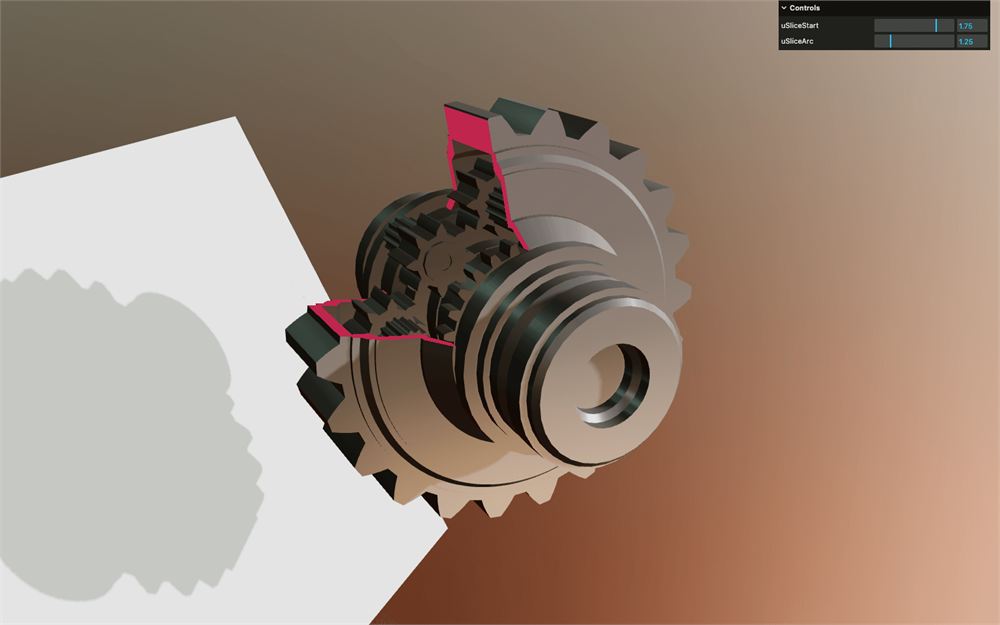
这部分有点傻。事实上,除了 float,我们也可以用 vec2 或 vec3,随便什么。无论如何,它是一种告诉 Custom Shader Material 我们想应用补丁而不会破坏 GLSL 语法的方式。
修复阴影
我们快完成了,但阴影没有切片。我们能在平面上看到这一点,在那些看起来处于阴影中的小齿轮上也能看到。
实例化
和上一课一样,我们需要提供一个自定义的深度材质。
复制 slicedMaterial 并命名为 slicedDepthMaterial:
const slicedMaterial = new CustomShaderMaterial({
    // ...
})

const slicedDepthMaterial = new CustomShaderMaterial({
    // ...
})
把 baseMaterial 改为 THREE.MeshDepthMaterial:
const slicedDepthMaterial = new CustomShaderMaterial({
    // CSM
    baseMaterial: THREE.MeshDepthMaterial,
    // ...
})
移除与 MeshStandardMaterial 相关的属性,并添加我们需要的、与 MeshDepthMaterial 相关的唯一属性,即把 depthPacking 设置为 THREE.RGBADepthPacking:
const slicedDepthMaterial = new CustomShaderMaterial({
    // CSM
    baseMaterial: THREE.MeshDepthMaterial,
    vertexShader: slicedVertexShader,
    fragmentShader: slicedFragmentShader,
    uniforms: uniforms,
    patchMap: patchMap,
    silent: true,

    // MeshDepthMaterial
    depthPacking: THREE.RGBADepthPacking
})
应用
我们的深度材质准备好了。
在我们判断 child.name 是否等于 'outerHull' 的地方,除了把 slicedMaterial 应用到 material 属性之外,还要把 slicedDepthMaterial 应用到 customDepthMaterial 属性:
gltfLoader.load('./gears.glb', (gltf) =>
{
    // ...

    model.traverse((child) =>
    {
        if(child.isMesh)
        {
            if(child.name === 'outerHull')
            {
                child.material = slicedMaterial
                child.customDepthMaterial = slicedDepthMaterial
            }
            // ...
        }
    })

    // ...
})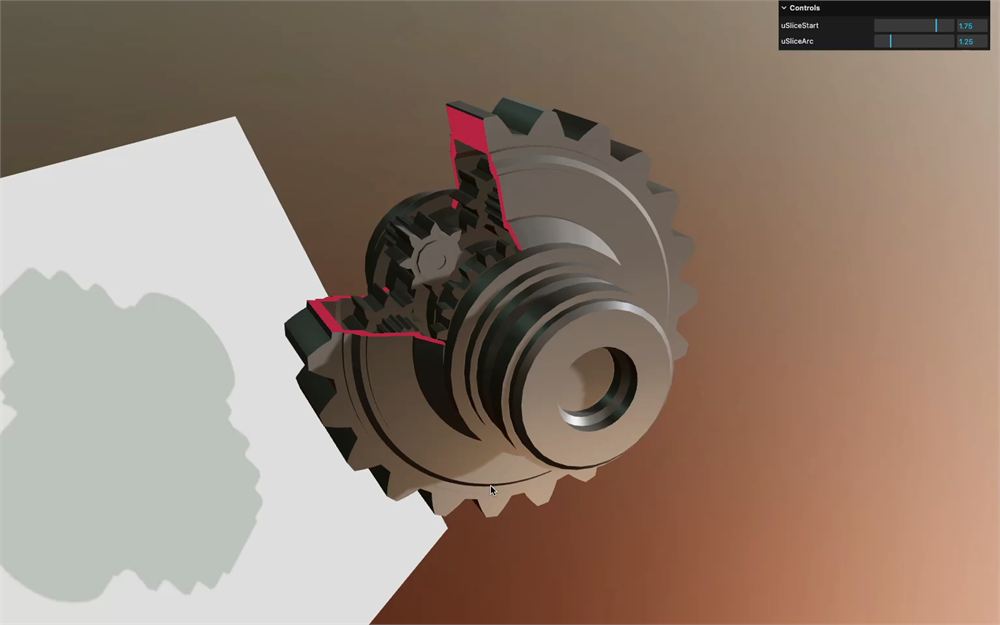
就这样。由于我们使用了相同的 uniforms 和 patchMap,切片现在会作用到深度材质上,从而正确更新阴影。
延伸学习
是的,这个效果就到此为止了。
一如既往,欢迎你继续深入。这里有一些建议:
- 添加一个控制颜色的 uniform
- 根据任意用户交互来动画化切片
- 用你自己的模型测试
- 制作一个比径向切片更炫酷的显现效果。为什么不试试用 Simplex Noise 呢?